Get started on Apple TV
In this tutorial you set up the app on your Apple TV, sign in with your phone, and add your first title. It takes about five minutes.
Before you start, have these ready:
- the address you use for Scaricarr in the browser, for example
scaricarr.example.org - your Scaricarr user name and password
- a phone or computer to sign in on
1. Enter your server address
When you open the app for the first time, it asks for your Server address.
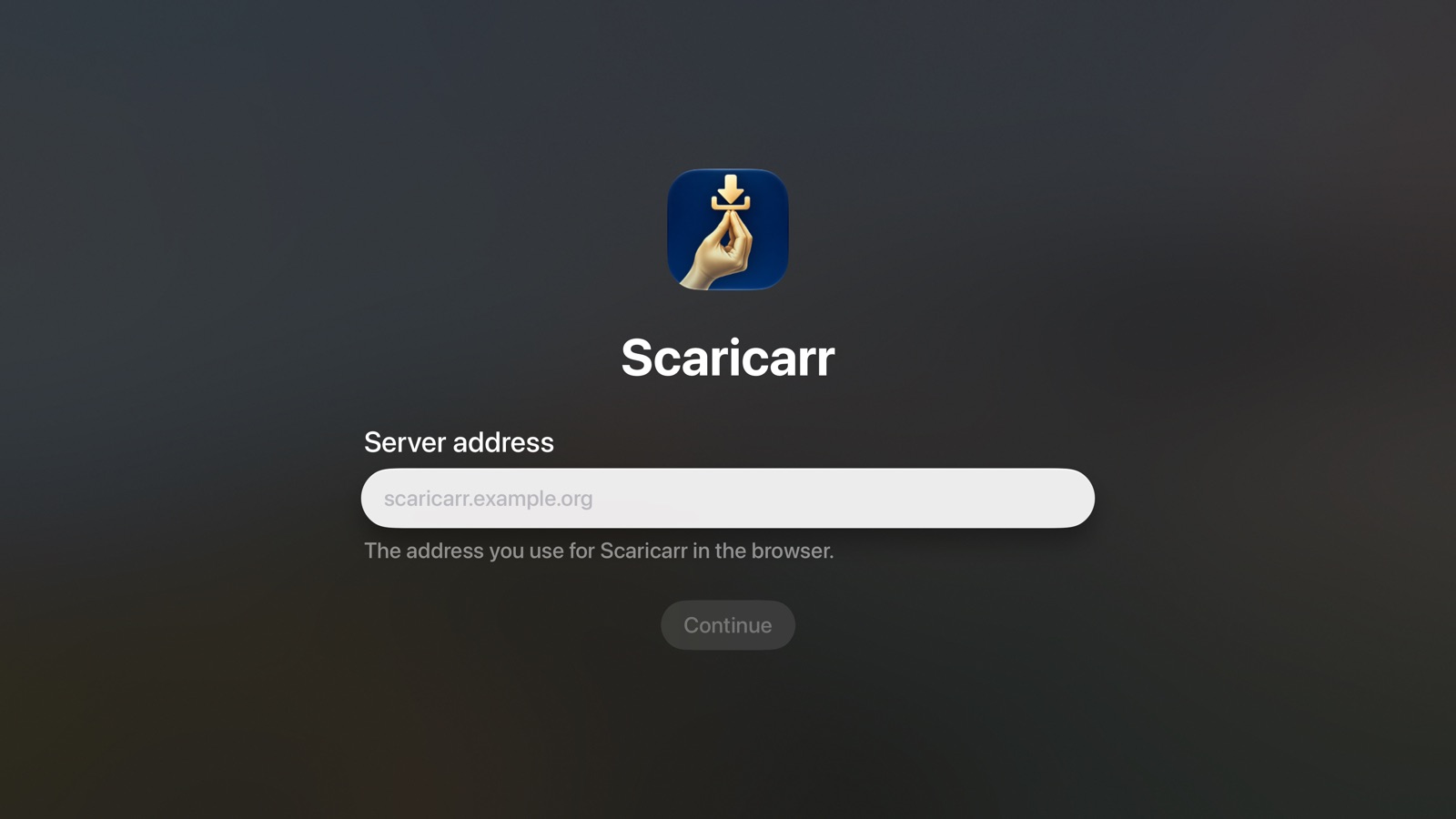
- Select the field and type the address you use for Scaricarr in the browser. If your iPhone is nearby, it offers to type with its keyboard instead of the remote.
- Select Continue.
If something is wrong, the app tells you below the field. Check the address and try again.
No server of your own yet? Select Try the demo server instead. It has made-up titles, downloads nothing and undoes all changes every day. On its sign-in page on your phone, tap one of the accounts; no password is needed.
2. Sign in with your phone
Your Apple TV now shows a code and a QR code.
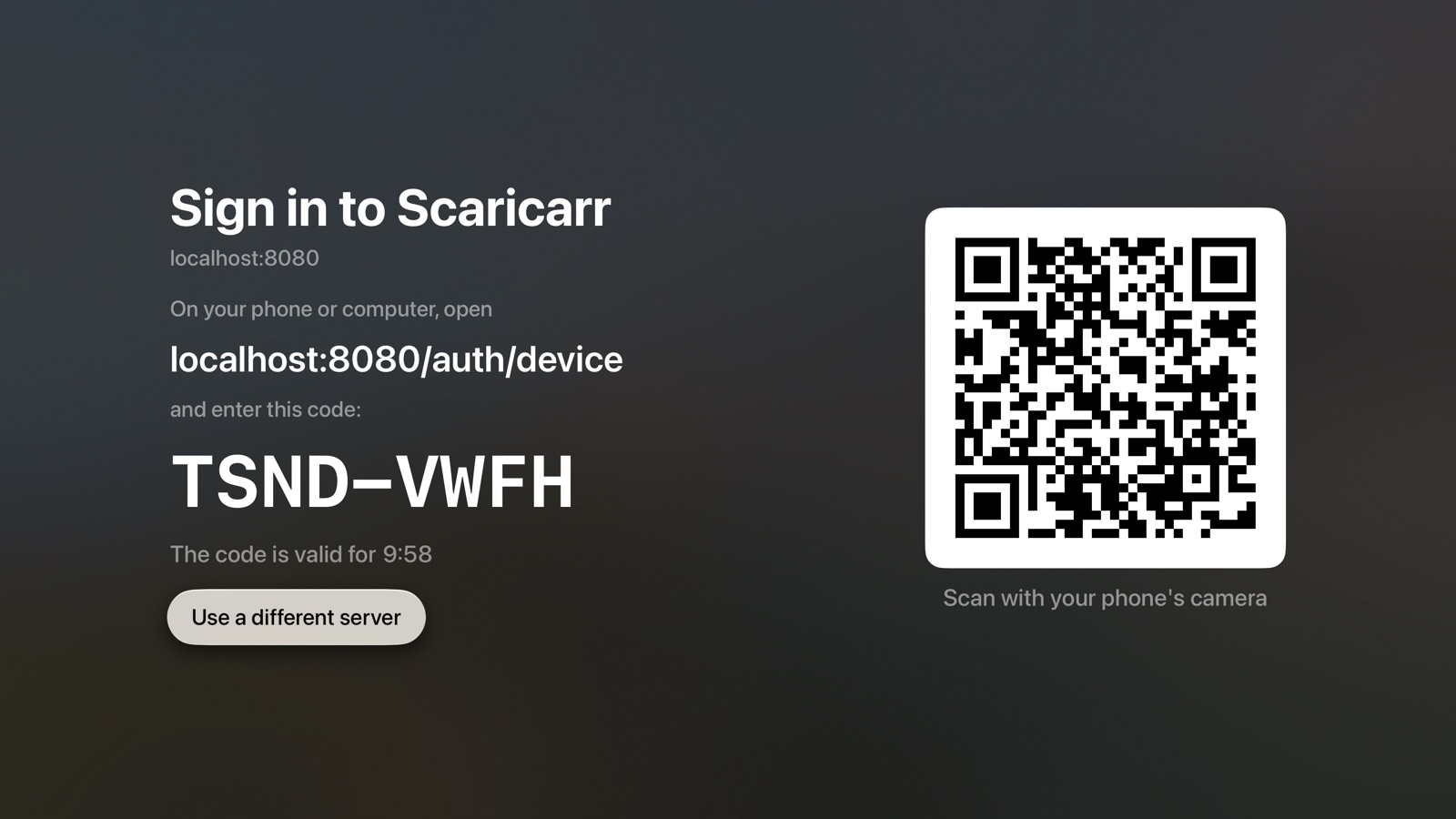
- On your phone, scan the QR code with the camera. Or open the address shown on the TV on your phone or computer and type the code.
- Sign in with your Scaricarr user name and password, if you are asked to.
- Choose Allow.
The TV notices by itself and opens your Library. The TV shows how long the code is valid. If it runs out, select Get a new code.
3. Look around your library
The library first shows only the titles you added yourself.
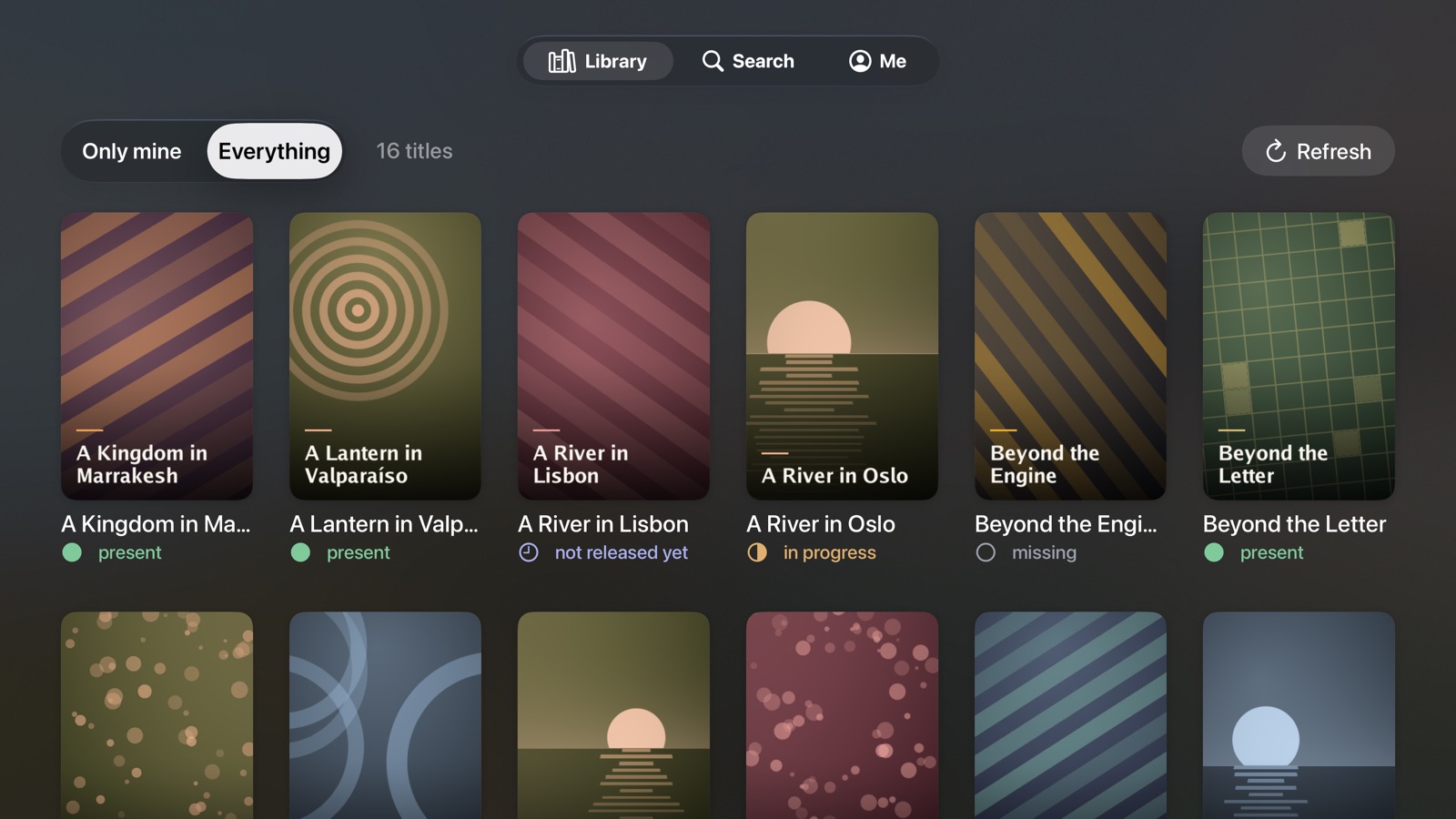
- Move up to Only mine and switch to Everything to see the whole household's library.
- Select a poster to see more about the title. Press Back (or Menu) on the remote to return.
4. Find and add a movie or series
- Go to the Search tab at the top.
- Type at least three letters of a title.
- Select a result. You see its poster, ratings and summary.
- Select Add to library.
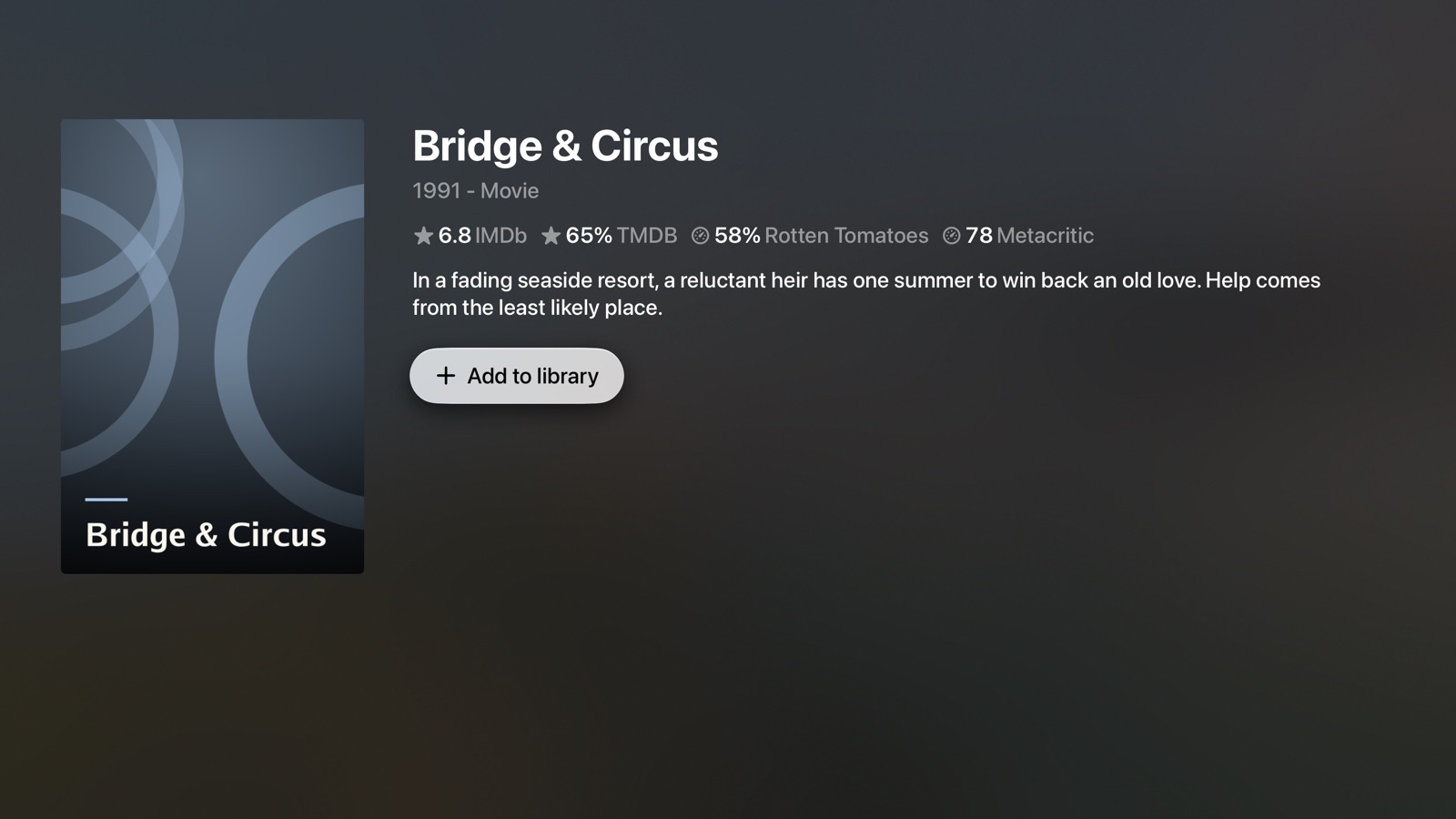
The screen turns into the title's page in your library.
5. Follow it
Back in Library, your new title is there. Its status changes from missing to in progress and finally to present when it is ready to watch. Select Refresh to update the library.
Your own titles also appear on the Apple TV Home Screen when Scaricarr is in the top row. See Open a title from the Home Screen.
What's next
- Learn how to choose seasons, replace a copy or remove a title.
- Look up what each screen shows.
- Find out what the statuses mean.