iPhone and iPad screens
Every screen of the app on iPhone and iPad, what it shows and what you can do there.
Tabs
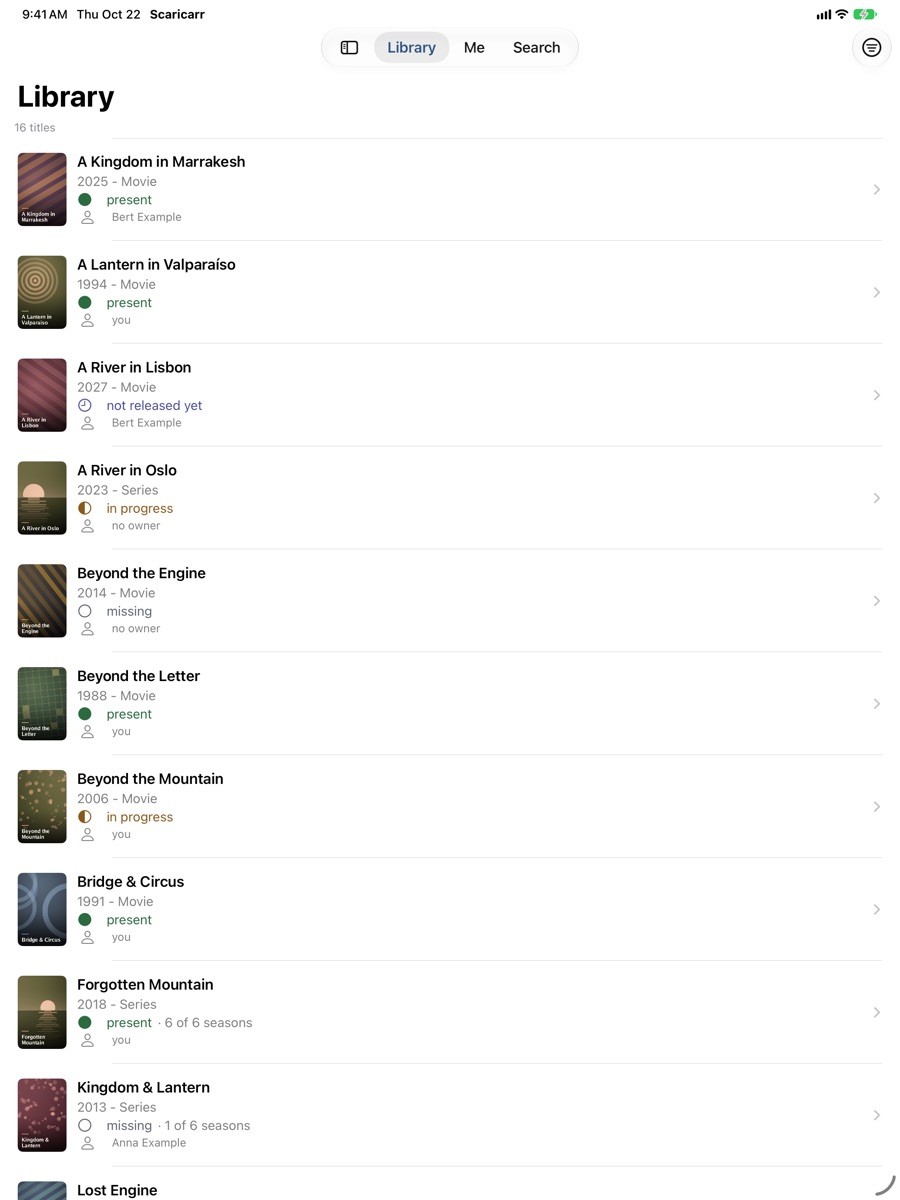
The app has three tabs: Library, Me and Search. On iPhone they sit at the bottom, with Search as a separate button on the right. On iPad they sit at the top and can be shown as a sidebar.
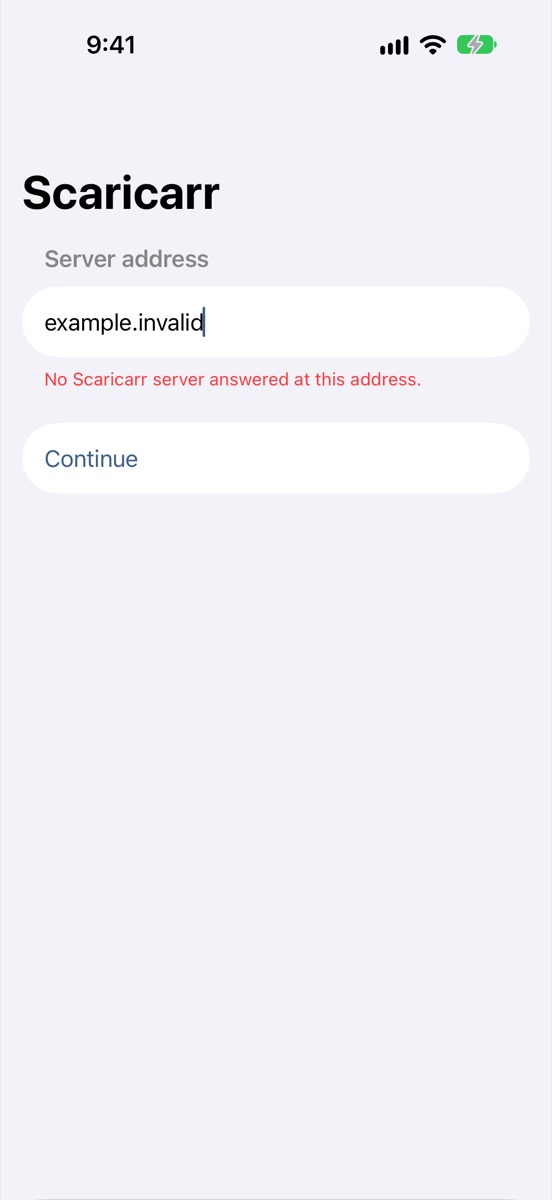
Server address
Shown the first time you open the app, and after Use a different server.
| Element | What it does |
|---|---|
| Server address | The address you use for Scaricarr in the browser. https:// is optional. |
| Continue | Checks the address and moves on to sign-in. |
| Try the demo server | Uses the public demo server with made-up titles and moves on to sign-in. Its sign-in page shows one button per account. |
If the address doesn't work, a message appears below the field. See Messages when you connect.
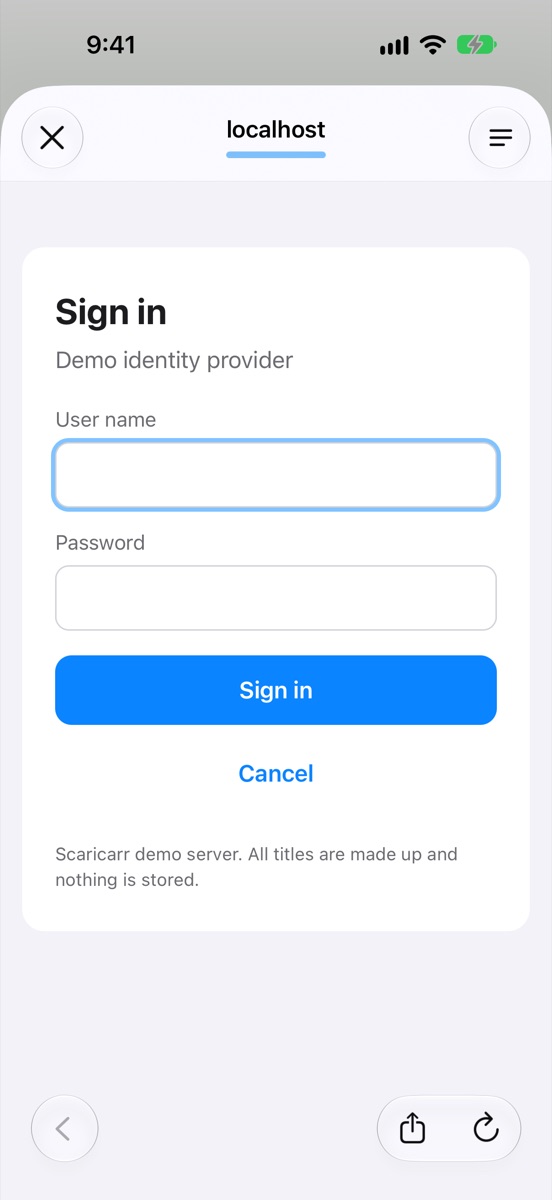
Sign-in
Shows the name of your server.
| Element | What it does |
|---|---|
| Sign in | Opens your Scaricarr sign-in page. Not available while you are offline. |
| Use a different server | Goes back to the server address. |
If you were signed out because your sign-in ran out, the screen says "Session expired, please sign in again."
Library
Everything in your household's library, or only your own titles.
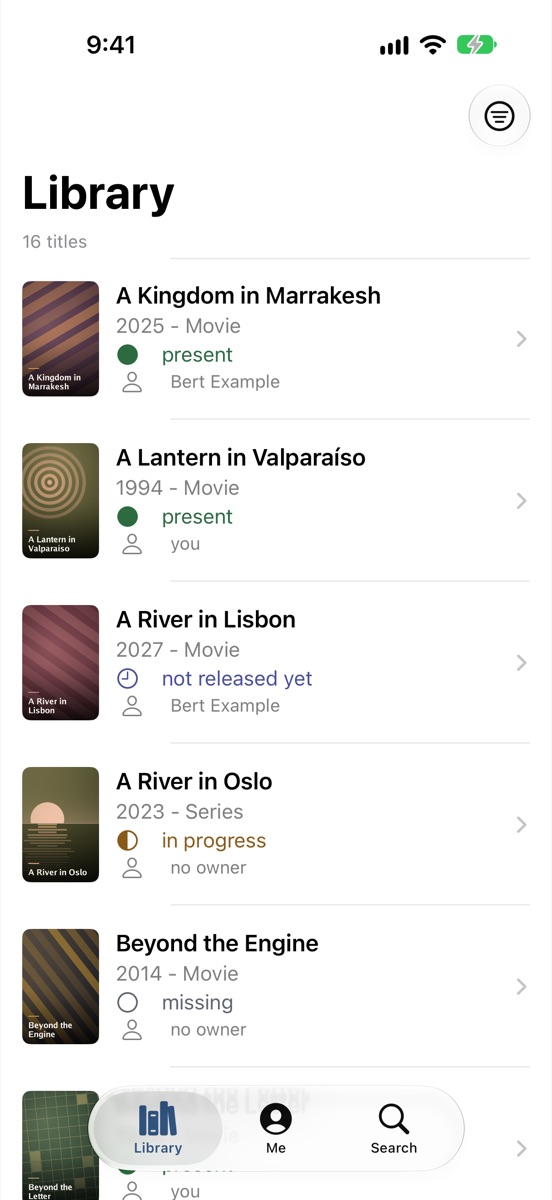
- Each row shows the poster, title, year, whether it is a movie or series, the status and who added it: you, a name, another user or no owner.
- The count at the top says how many titles there are, or how many you added.
- Filter (top right): Only mine or Everything.
- Tap a row to open the title. Pull down to refresh. Scroll down to load more.
Title
The page of a movie or series in your library.
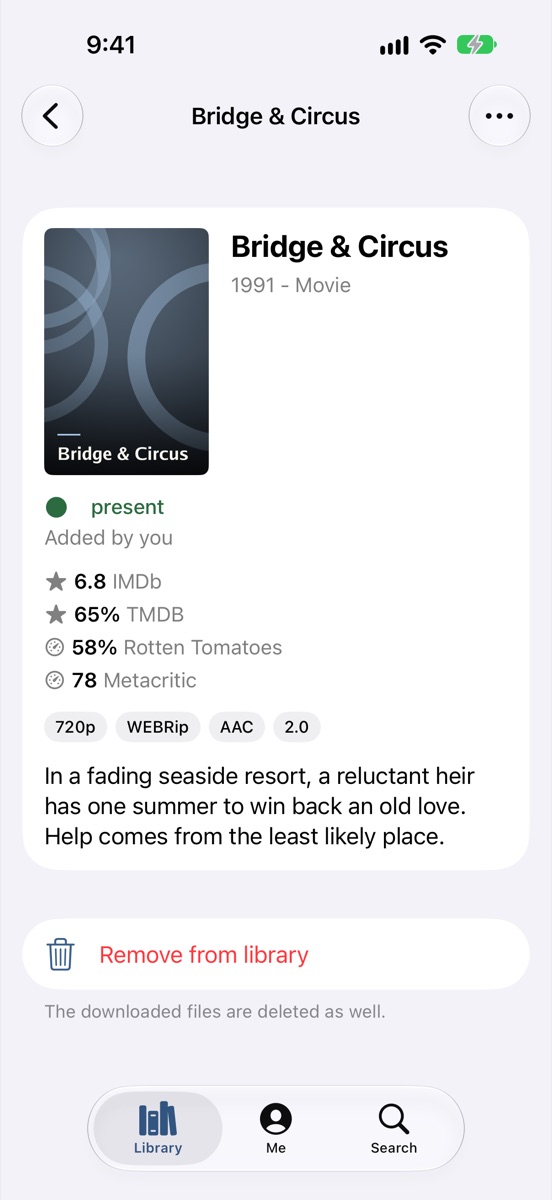
- Poster, title, year and type, status.
- Not before …: the earliest date the title can arrive, for titles not released yet.
- Next episode …: when the next episode of a series airs.
- Added by …, ratings, quality and a summary.
- More (···, top right) → Get a different copy: for movies, see Get a different copy of a movie.
- Remove from library: removes the title and deletes its files.
- Pull down to refresh.
Seasons
On the page of a series:
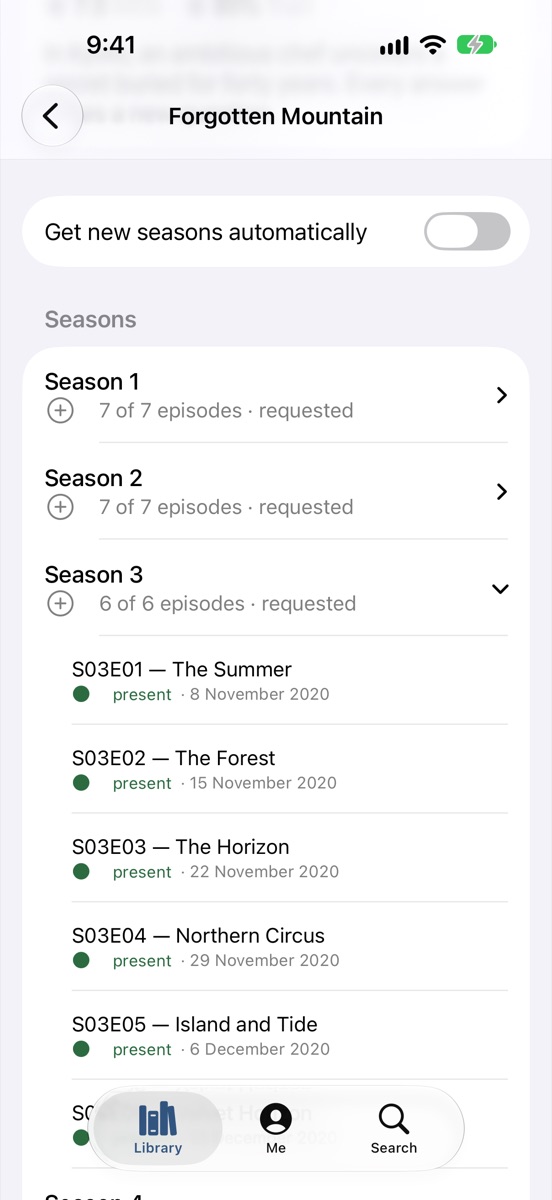
- Get new seasons automatically: requests new seasons as they are announced.
- Seasons: one row per season, for example "7 of 7 episodes · requested". Tap a season to show its episodes, each with number, name, status and air date.
- Touch and hold a season for Request season … or Remove season ….
- Touch and hold an episode for Get a different copy.
- Request several seasons… below the list opens the season picker.
Search
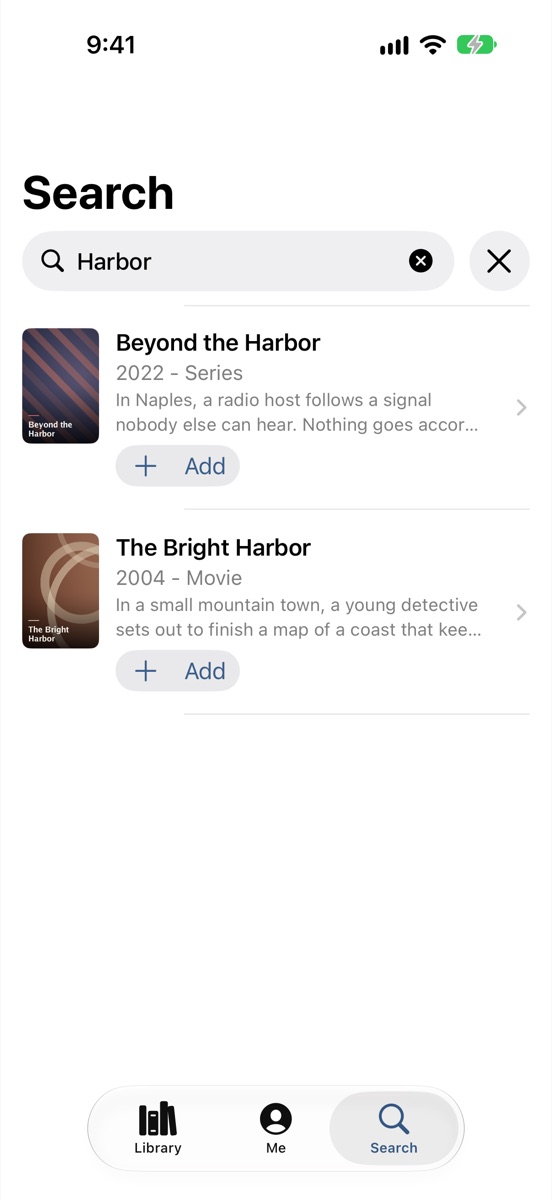
- Movies and series: the search field. The search starts at three letters.
- Each result shows the poster, a short summary and Add, or In the library if it is already there.
- Tap a result to open its preview, or the title in your library.
Preview
A title that is not in the library yet.
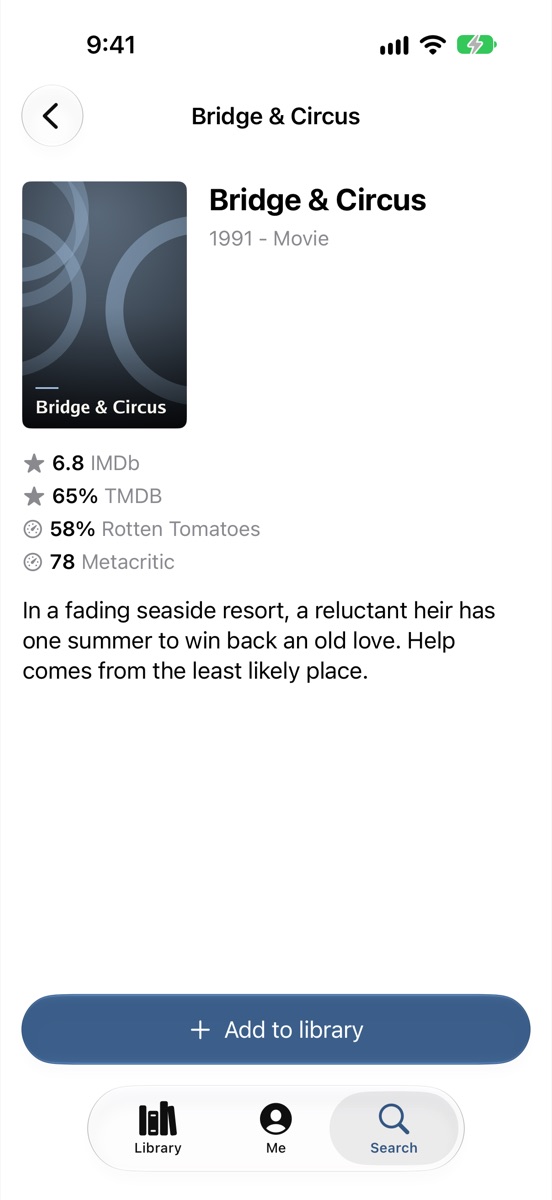
- Poster, ratings and summary.
- Add to library: adds it. The page then turns into the title's page.
- Choose seasons: for series with more than one season, opens the season picker.
Season picker
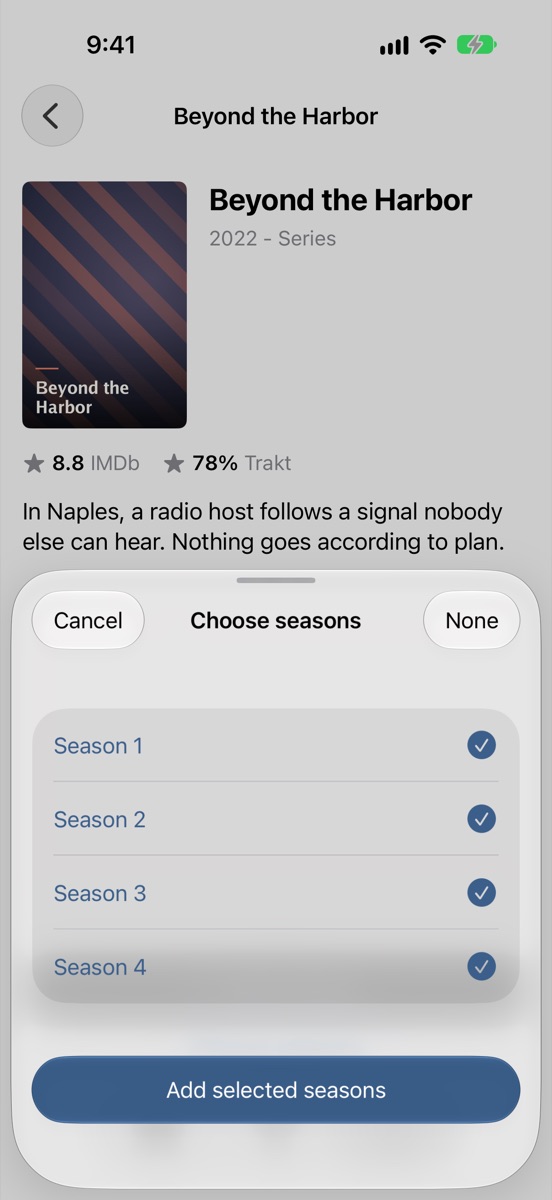
- One row per season. Tap a season to select it or leave it out.
- All / None: select every season or none.
- Add selected seasons or Request selected seasons: confirms.
- Cancel: closes without changes.
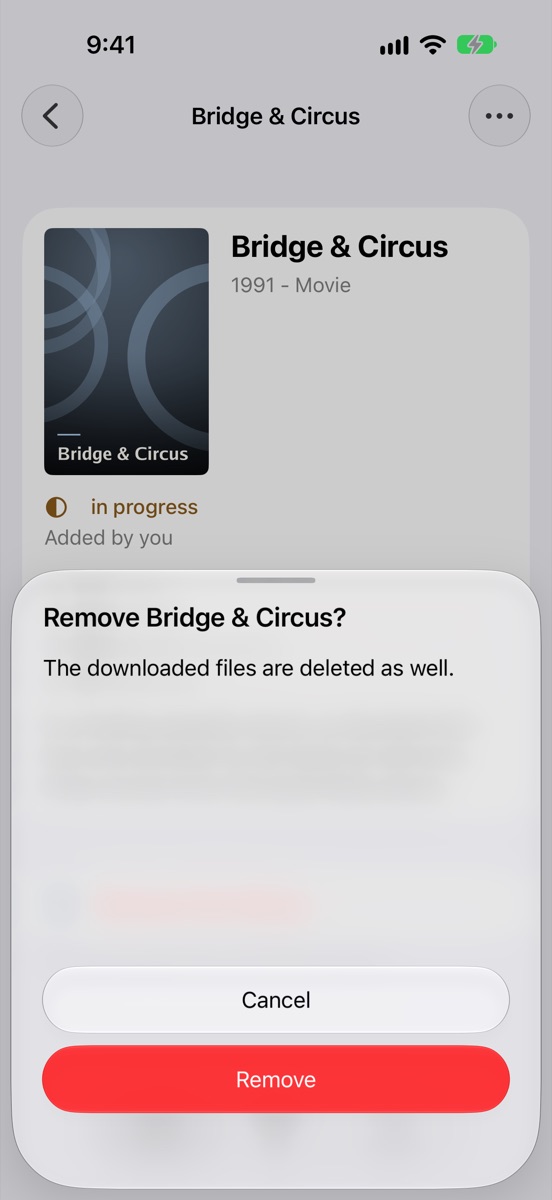
Confirmations
Before something is deleted or replaced, the app asks. The question says what will happen, for example "Remove season 3?" with the number of episodes that will be deleted. Tap Remove or Replace to go ahead, or Cancel.
Me
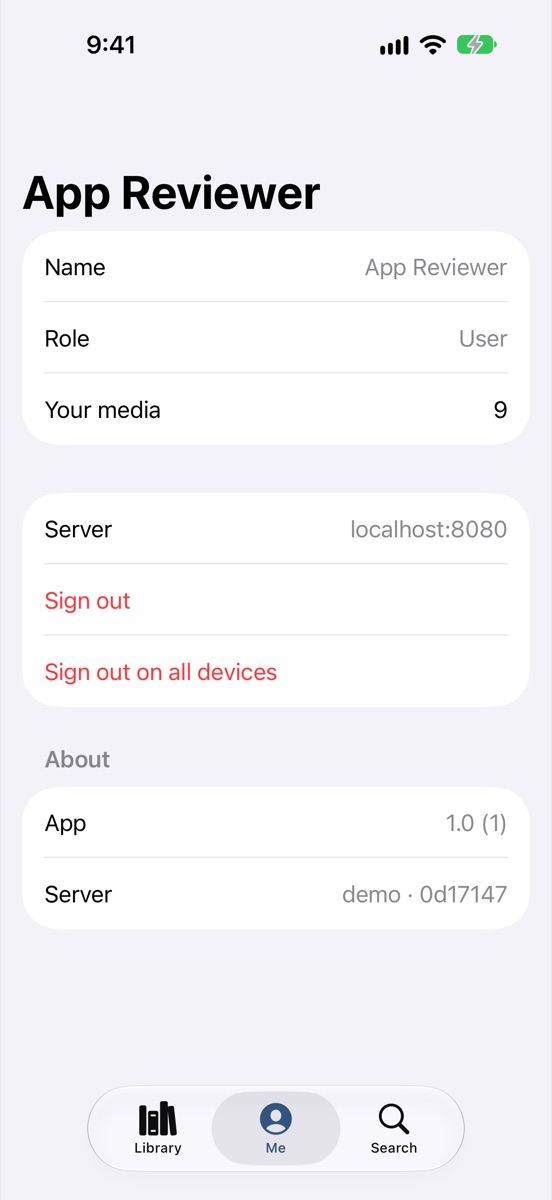
| Element | What it does |
|---|---|
| Name, Role | Your name and whether you are a User or an Administrator. |
| Your media | How many titles you added. Tap it to see them in the library. |
| Server | The server you are connected to. |
| Sign out | Signs you out on this device. |
| Sign out on all devices | Signs you out on every device and browser. |
| About | The app version and the server version. Touch and hold to copy them. |
When the server can't be reached, the tab shows Server not reachable and offers Sign out on this device.