How-to guides for Apple TV
Short guides for single tasks. They assume you have set up the app and are signed in.
Some actions, like removing a title, are only offered to people who may make that change. If a button described here is missing, see Who may change what.
Add a movie or series
- Go to the Search tab and type at least three letters of the title.
- Select a result. You see its poster, ratings and summary.
- Select Add to library.
If the title is already in the library, selecting it opens its page there.
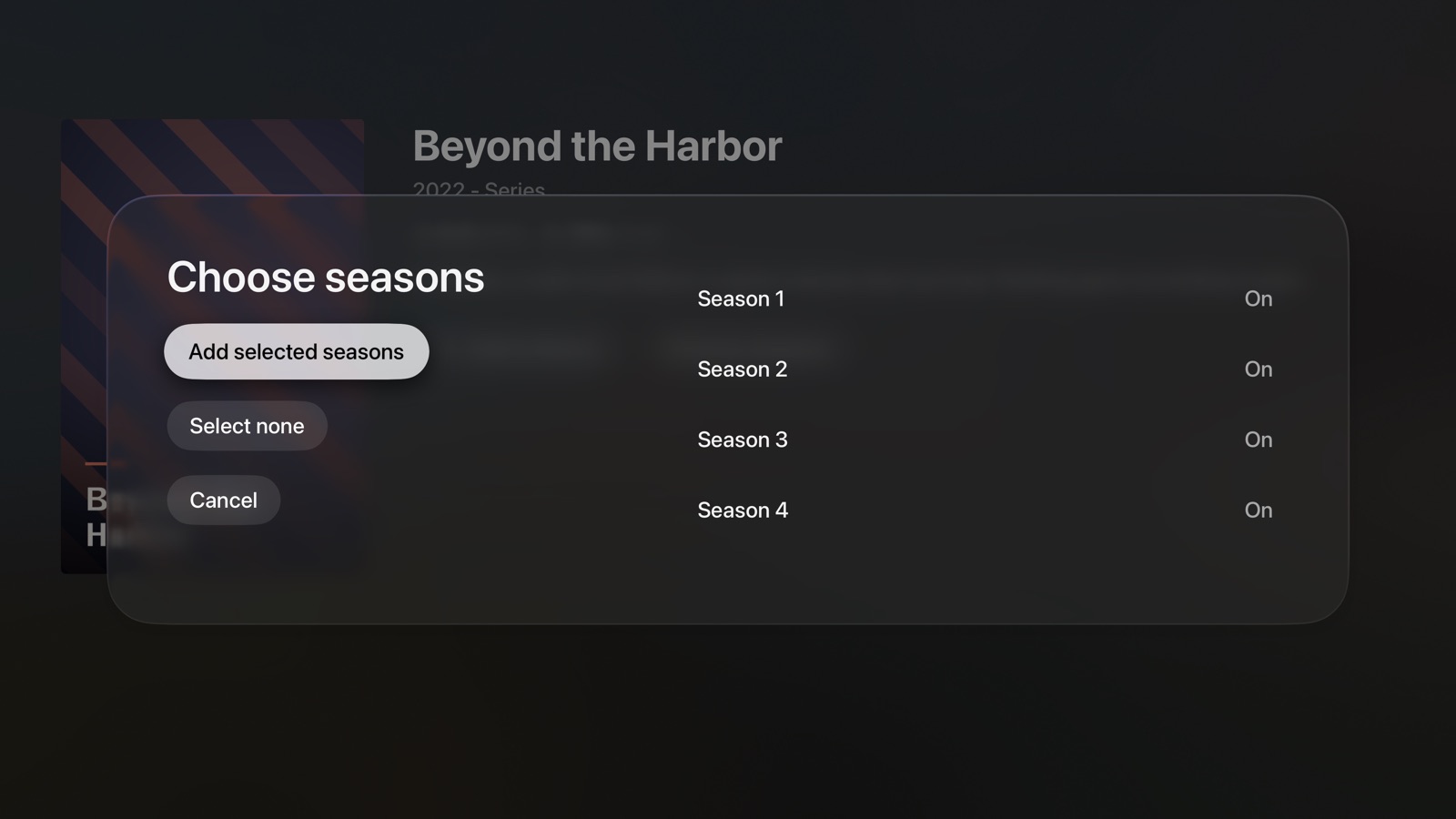
Choose seasons when you add a series
- Search for the series and select it.
- Select Choose seasons.
- All seasons are on. Turn off the ones you don't want, or select Select none and turn on the ones you want.
- Select Add selected seasons.
Request or remove a season
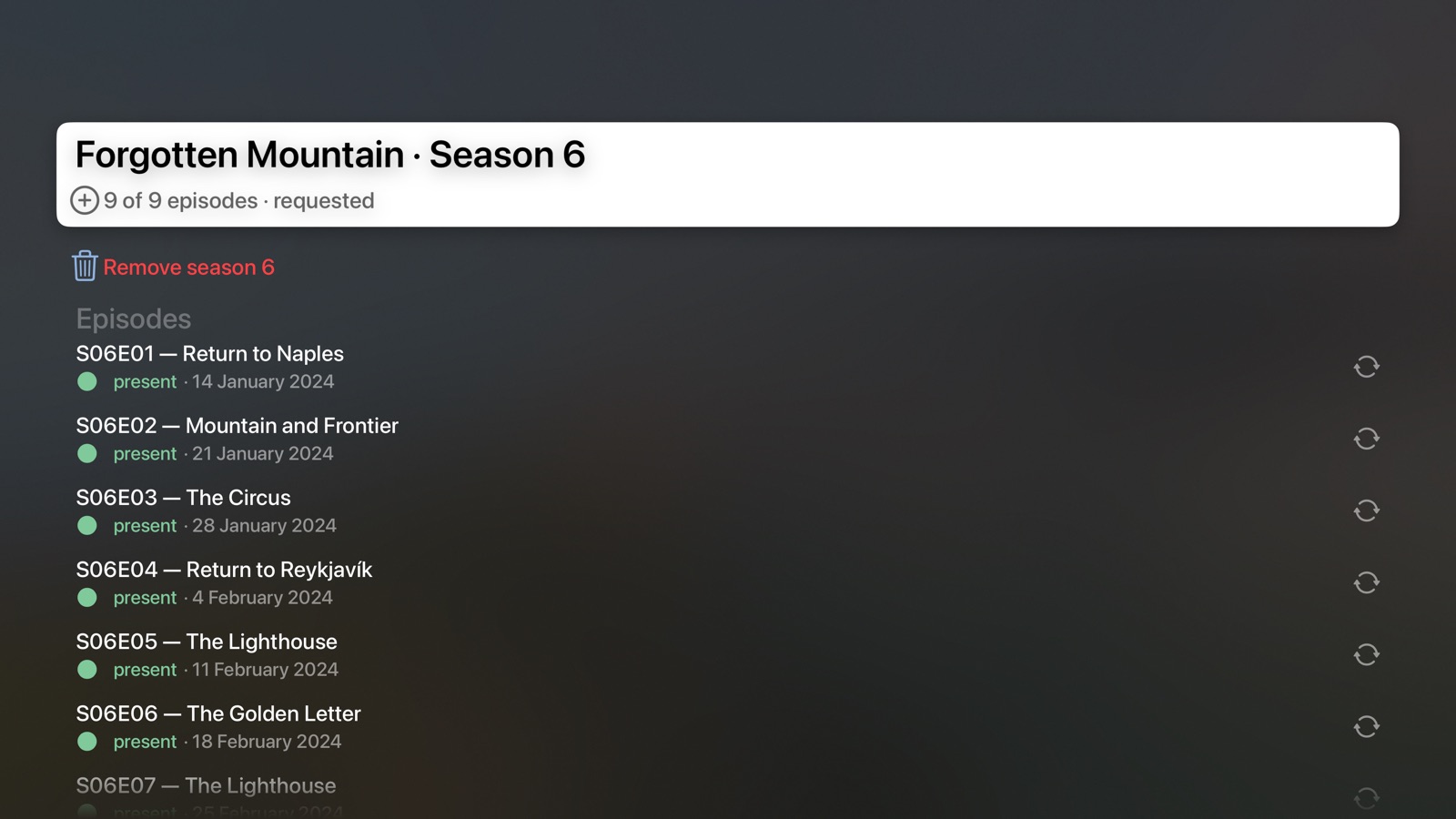
On the page of a series in your library, scroll down to Seasons:
- Request several seasons: select Request several seasons…, turn on the seasons you want and select Request selected seasons.
- Request or remove one season: select the season. On its page, select Request season … or Remove season …. Removing asks you to confirm with Remove; the downloaded episodes of that season are deleted.
Get new seasons automatically
On the page of a series, turn on Get new seasons automatically. New seasons are then requested as soon as they are announced.
Get a different copy of a movie
- Open the movie.
- Select Get a different copy and confirm with Replace.
Scaricarr throws away the current copy, won't take the same one again, and looks for a new one.
Get a different copy of an episode
- Open the series and select the season.
- In Episodes, select the episode and confirm with Replace.
This works for single episodes only.
Remove a title
- Open the title.
- Select Remove and confirm with Remove.
The downloaded files are deleted as well.
Show only your own titles
In Library, switch between Only mine and Everything at the top.
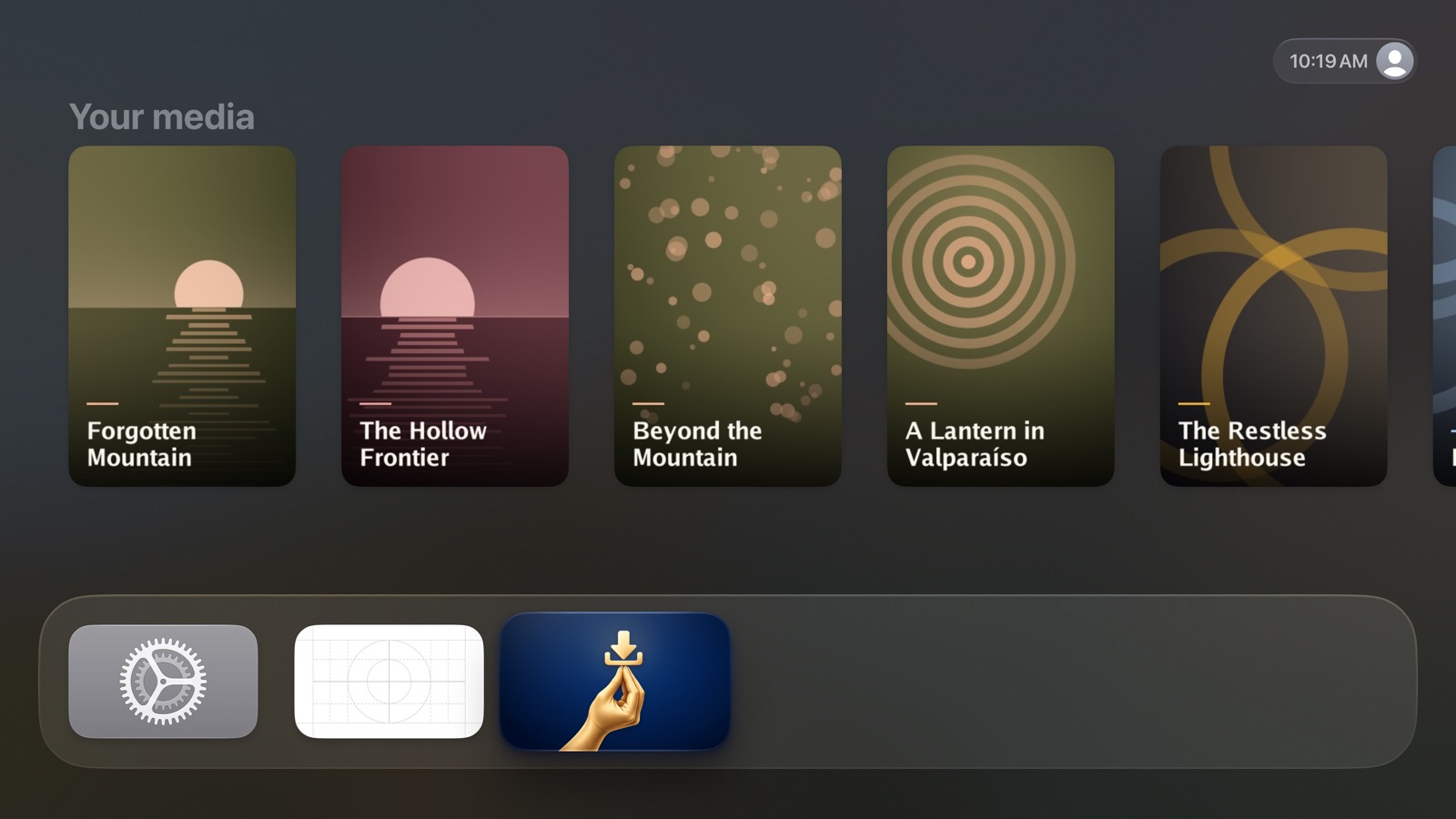
You can also select Your media on the Me tab to jump straight to your own titles.
Refresh
Select Refresh in the library or on a title's page.
Open a title from the Home Screen
When Scaricarr is in the top row of your Apple TV Home Screen, its row shows posters of your own titles. Select a poster to open the title directly. Press Back to return to the app.
Sign out
- Open the Me tab.
- Select Sign out.
To sign out everywhere you use your account, select Sign out on all devices and confirm with Sign out everywhere.
Connect to a different server
- Sign out.
- On the sign-in screen, select Use a different server.
- Enter the new address and select Continue.